TWO DOWNLOADS TO TWO DEVICES
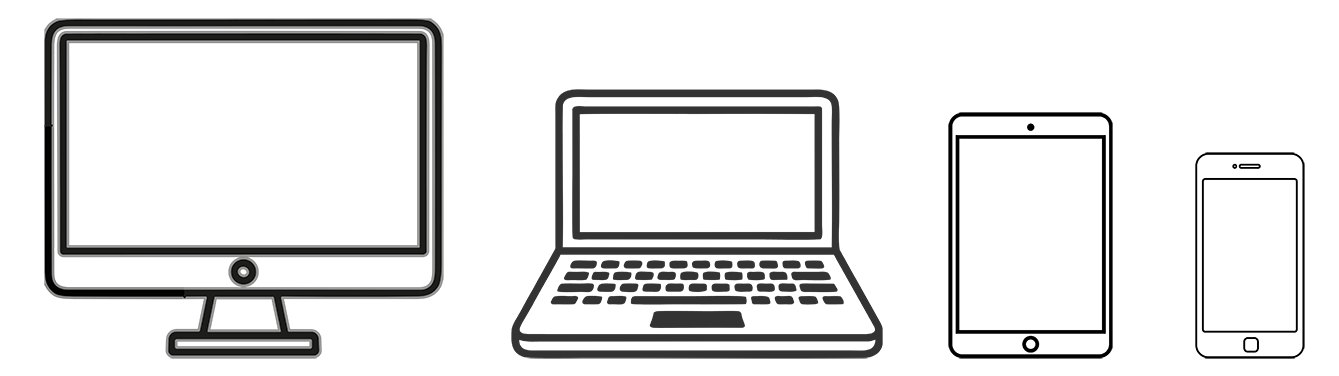
We give you two downloads to be able to download to two of your devices like a desktop computer, laptop computer, tablet or cell phone. You can choose which two devices you would like to download to.
You can download to the device you are using to purchase the workshops or guides at the time of purchase or open the email from us on the device you would like to download to and click the download button in the email. We divide the workshops into sections to make them easier to take so you will need to download all the sections.
CHOOSE TWO DEVICES TO DOWNLOAD TO:
LOCATING DOWNLOADED FILES
ON YOUR COMPUTER
Open the Downloads folder on your computer to look
for your downloaded workshops and guides.

PC Computer
Downloads Icon

Apple Computer
Downloads Icon
2. CELL PHONES & TABLETS: Locating workshops or guides on a tablet or cell phone
After downloading to a cell phone or tablet follow these instructions to find the workshops and guides.
ANDROID PHONE - My Files
1. Look for My Files icon (an icon with a yellow background and a white folder image inside it) and tap on it to open it.
2. Click on Downloads to open downloads area and look for your workshop or guides files. (You can also look in categories)
* On Samsung phones the My Files icon may be located in the Samsung icon folder. On some brands it may be called File Manager or Files.

ANDROID CELL PHONE
My Files Icon
APPLE IPHONE - Files
1. Look for Files icon (an icon with a white background and a blue folder image inside it) and tap on it to open it.
(If you can’t find it, swipe down from the middle of the screen and type “Files” into the search bar.)
2. Tap Browse in the lower right corner of the screen.
3. Tap On My iPhone: For files saved directly to your device storage (including your local Downloads folder).

IPHONE
Files Icon
HOW TO ROTATE CELL PHONE SCREEN FOR HORIZONTAL VIEWING
When viewing on a cell phone you may want to set it to Auto Rotate to view horizontal workshops and guides horizontally.
ANDROID CELL PHONE - Auto Rotate Off & On
1. Swipe Down: Swipe down from the top of your cell phone screen with to open the Quick settings panel.
2. Look for the Auto rotate icon. (When locked it may have a padlock image on it, be grey or say Portrait. When turned on it may have two circular arrows on a white or blue background or say Auto Rotate.)
3. You can tap on the Auto Rotate icon to turn it off and on. If the icon is gray and says "Portrait," tap it so it turns blue and changes to "Auto rotate" Now you can turn your phone sideways to view the workshops and guides horizontally.
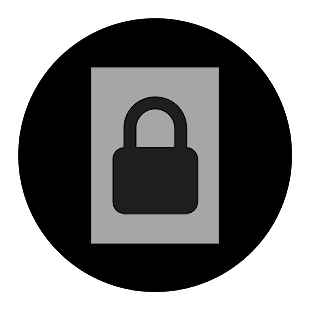
Auto Rotate Off
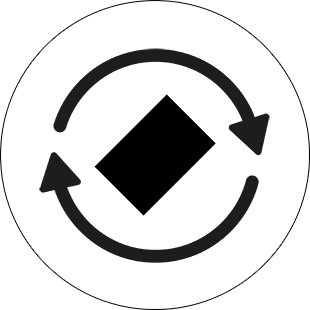
Auto Rotate On
IPHONE - Auto Rotate Off & On
1. From the top-right corner of your iPhone screen swipe down to open the Control Center. You can also swipe up from the bottom of the screen on older models with a Home button.
2. Locate the Portrait Orientation Lock button (it looks like a lock with a circular arrow around it). You can tap the button to turn it off if it is highlighted in white/orange to allow your screen to rotate.
3. You can tap on the Auto Rotate icon to turn it off and on. If the icon is gray and says "Portrait," tap it so it turns blue and changes to "Auto rotate" Now you can turn your phone sideways to view the workshops and guides horizontally.

Auto Rotate Off

Auto Rotate On